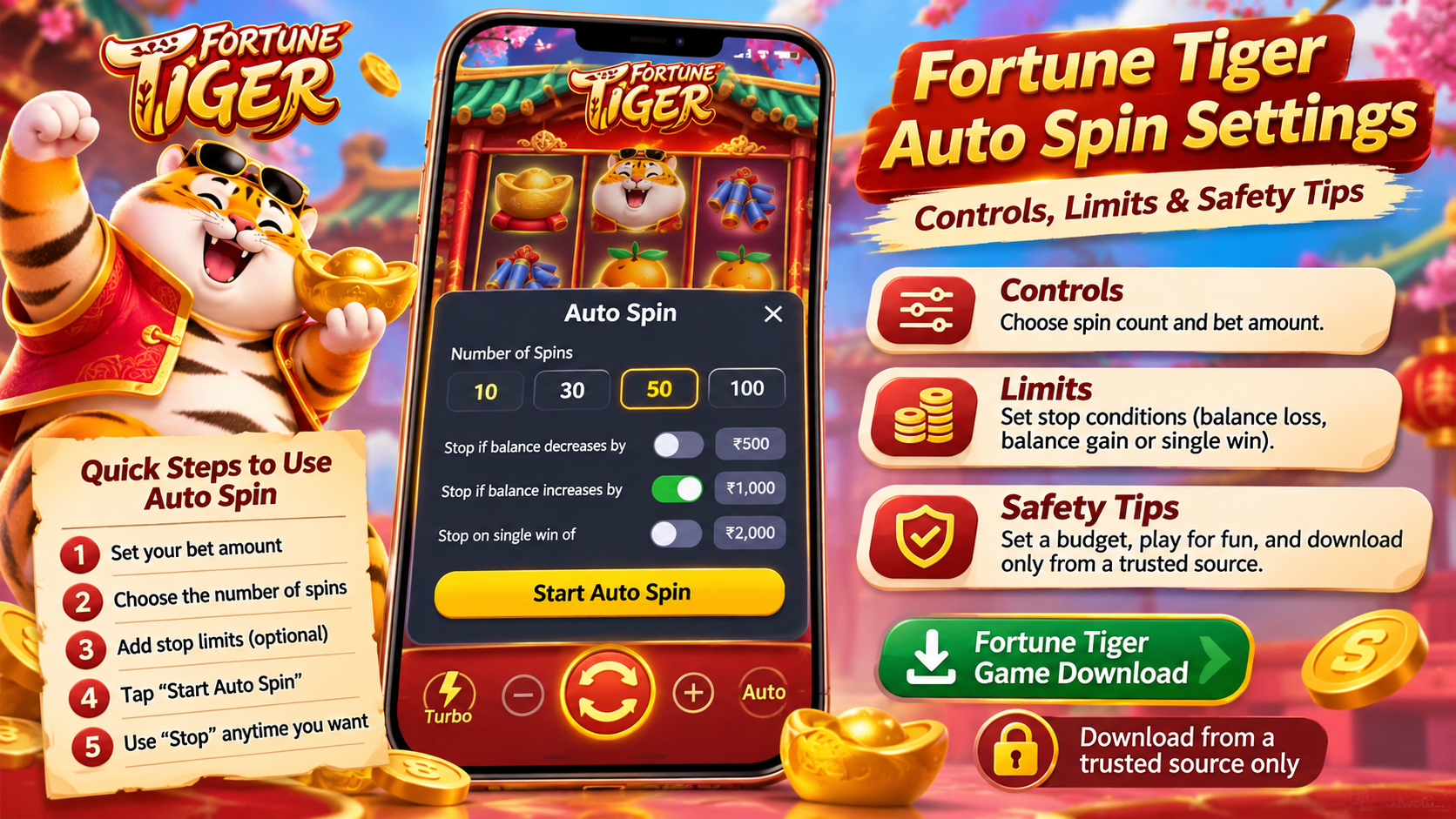
Auto Spin can make Fortune Tiger gameplay feel smoother by running several spins automatically. However, understanding the controls and setting clear limits helps you stay aware of your session, balance and spending.
This guide explains how Auto Spin works, which settings to check, and what to know before you choose a game download on TeenPatiCraze.
Related Post: Fortune Tiger vs Other 3×3 Slots: What Makes the Layout Different?
What Are Fortune Tiger Auto Spin Settings?
Auto Spin is a game feature that starts a selected number of spins without requiring you to tap the Spin button after every round. According to the official PG Soft game information, players can select the number of spins and use optional stop conditions based on balance changes or a single win.
These controls help you manage gameplay, but they cannot predict winning combinations or guarantee a return.
How to Use Fortune Tiger Auto Spin
Follow these steps to understand the feature:
1. Check the Bet Amount
Open the bet options and review the selected stake before starting. Choose an amount that fits your entertainment budget, and read the paytable to understand the game's rules.
2. Select the Number of Spins
Open Auto Spin and choose an available spin count. Start with a short session so you can review the results before deciding whether to continue.
3. Set Available Stop Limits
Depending on the game version, you may find options to stop Auto Spin when your balance decreases by a chosen amount, increases by a set amount, or reaches a specified single-win threshold.
Check which options your version actually provides. A stop condition is a useful control, not a guarantee against losses.
4. Know How to Stop
Look for the Stop control while Auto Spin runs. Use it whenever you want to end the sequence, and check your balance before starting another session.
Fortune Tiger Auto Spin vs Turbo Spin
Auto Spin and Turbo Spin serve different purposes. Auto Spin repeats rounds automatically, while Turbo Spin reduces the duration of reel animations. Faster animations do not improve the odds of winning.
If you prefer to follow every result, use regular spins. If you choose Auto Spin, stay attentive and avoid leaving the game running unattended.
Safety Tips Before a Fortune Tiger Game Download
Before looking for a fortune tiger game download, check the website, app publisher and permissions carefully. TeenPatiCraze provides its own game page and download instructions, but users should still verify the source and understand the risks of installing an APK outside an official app store.
Keep these precautions in mind:
-
Set a fixed spending limit and a time limit before playing.
-
Never use money needed for bills or essential expenses.
-
Avoid chasing losses or increasing stakes out of frustration.
-
Never share your OTP, UPI PIN or banking password.
-
Check local laws and age restrictions before accessing real-money gaming.
-
Remember that Auto Spin cannot make a random outcome predictable.
The phrase fortune tiger slots download may lead to different websites or apps. Verify the publisher and file source instead of trusting a download link simply because it uses the game's name.
Final Thoughts
Fortune Tiger Auto Spin can simplify repeated gameplay, but convenience should never replace control. Understand the available settings, review the rules and set limits before starting. Most importantly, treat gaming as entertainment rather than a way to earn money.
Age notice: Real-money gaming carries financial risks and may be restricted by local law. Only adults who meet the applicable legal requirements should consider participating.
Frequently Asked Questions
Does Auto Spin increase winning chances?
No. It automates repeated spins but does not change the game's underlying odds or guarantee a win.
Can I stop Fortune Tiger Auto Spin early?
Yes, the official game information describes a Stop control for ending an active Auto Spin sequence. The exact interface may vary by version.
Is Turbo Spin the same as Auto Spin?
No. Turbo Spin speeds up reel animations, while Auto Spin starts multiple rounds automatically.
Is Fortune Tiger APK safe to download?
Safety depends on the actual file and its source. Verify the publisher, review permissions and avoid unknown or modified APKs.
Should beginners use Auto Spin?
Beginners should first learn the controls and paytable. If they choose to use Auto Spin, they should set strict limits, remain attentive and stop when those limits are reached.
